
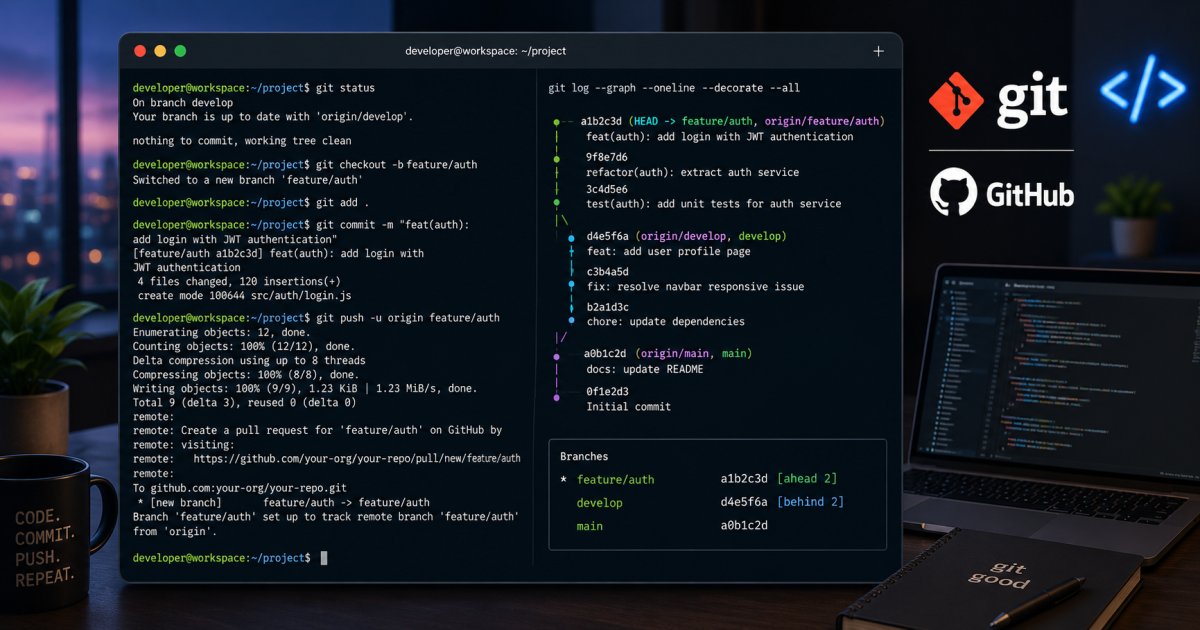
Git is the most widely used version control system in modern software development. Whether you're working on personal projects, contributing to open-source software, or collaborating with a development team, Git helps you track changes, manage code history, and work efficiently with others.
While Git offers hundreds of commands and options, most developers use a small set of commands daily. Learning these essential Git commands can significantly improve your productivity and confidence when working with code repositories.
In this guide, we'll explore the 10 most important Git commands every developer should know, along with practical examples and best practices.
1. git init
The git init command creates a new Git repository in your project directory.
Example
git initAfter running this command, Git starts tracking changes in the current folder.
When to Use It
- Starting a new project
- Creating a local repository
- Preparing a project for version control
This is usually the first Git command you'll use in a new project.
2. git clone
The git clone command creates a copy of an existing repository from a remote server such as GitHub.
Example
git clone https://github.com/username/project.gitGit downloads the repository along with its complete commit history.
Benefits
- Quickly access existing projects
- Contribute to open-source repositories
- Collaborate with team members
Cloning is one of the most frequently used Git operations.
3. git status
The git status command shows the current state of your repository.
Example
git statusIt displays:
- Modified files
- New files
- Deleted files
- Staged changes
- Current branch information
Why It Matters
Before committing changes, always check git status to understand what's happening in your repository.
4. git add
The git add command stages files before committing them.
Add a Single File
git add app.jsAdd All Files
git add .Purpose
Git uses a staging area where changes are prepared before creating a commit.
Using git add allows you to choose exactly which changes should be included in your next commit.
5. git commit
The git commit command saves staged changes to the repository history.
Example
git commit -m "Add user authentication feature"Best Practices
Write clear commit messages:
✅ Good
git commit -m "Fix login validation bug"❌ Bad
git commit -m "Update stuff"Meaningful commit messages make project history easier to understand.
6. git pull
The git pull command fetches and merges changes from a remote repository.
Example
git pull origin mainWhy Use It?
Before starting work, pull the latest changes to:
- Stay synchronized with teammates
- Avoid conflicts
- Work with the most recent code
Many developers begin their workday with a git pull.
7. git push
The git push command uploads local commits to a remote repository.
Example
git push origin mainBenefits
- Share code with team members
- Back up project history
- Deploy updated code through CI/CD pipelines
After committing changes locally, use git push to publish them.
8. git branch
Branches allow developers to work on new features without affecting the main codebase.
View Branches
git branchCreate a New Branch
git branch feature-authenticationWhy Branches Matter
Branches help teams:
- Develop features independently
- Test new ideas safely
- Maintain stable production code
Using branches is considered a Git best practice.
9. git checkout
The git checkout command switches between branches.
Example
git checkout feature-authenticationCreate and Switch in One Command
git checkout -b feature-authenticationThis saves time when starting a new feature.
Common Use Cases
- Working on different features
- Reviewing older code
- Switching environments
10. git merge
The git merge command combines changes from one branch into another.
Example
Switch to the main branch:
git checkout mainMerge a feature branch:
git merge feature-authenticationBenefits
- Integrates completed features
- Preserves project history
- Supports team collaboration
Merging is a core part of every Git workflow.
Bonus Git Commands Worth Learning
Once you've mastered the basics, consider learning these additional commands:
git log
View commit history.
git loggit diff
Compare changes between files and commits.
git diffgit reset
Undo staged changes.
git resetgit stash
Temporarily save unfinished work.
git stashThese commands become extremely useful as projects grow larger.
Common Git Workflow Example
A typical development workflow looks like this:
git pull origin main

git checkout -b feature-user-profile

git add .

git commit -m "Add user profile page"

git push origin feature-user-profile
This workflow keeps development organized and collaborative.
Git Best Practices
To get the most out of Git:
- Commit frequently
- Write meaningful commit messages
- Pull before starting work
- Use feature branches
- Avoid committing sensitive data
- Review changes before pushing
- Keep repositories clean and organized
Following these practices reduces errors and improves team productivity.
Final Thoughts
Git is an essential skill for every developer, regardless of experience level. Understanding these 10 fundamental commands will help you manage projects more effectively, collaborate with teams, and maintain a reliable history of your code changes.
While Git may seem overwhelming at first, mastering these commands provides a strong foundation for advanced version control workflows. Start using them regularly, and they'll quickly become second nature in your daily development process.